How to make a slideshow on Instagram (AKA carousel post)
Follow these steps to create an Instagram slideshow, also known as a multi-photo carousel post, on Instagram.
Step 1: Start a new post and choose multiple photos/videos
Open Instagram and tap the “+” (Create) button to start a new Instagram Post (choose “Post” if prompted).
In the media picker, tap the “Select Multiple” icon (two overlapping squares) so you can choose more than one photo or video.
Step 2: Select the content for your slideshow
Pick at least two photos and/or videos from your gallery to include. (You can add up to 20 slides.)
Though not essential, it’s best to use images with the same aspect ratio (for example, all square or all vertical) so the slides look consistent. When you’ve selected all your content, tap “Next”.
Step 3: Edit and rearrange each slideApply any filters or adjustments to each photo/video as you would usually. You can edit slides one by one in the photo window (swipe to navigate between them) and adjust brightness, contrast, or crop if needed.
This is all really easy on the app via a mobile device, although it can also be done on a computer.
To rearrange the order, press and hold a slide’s thumbnail and drag it to a new spot in the sequence. Once everything looks good, tap Next.
Step 4: Add music to your post (optional)
You will also have the option (depending on your region) to add a soundtrack for an extra bit of interest. This is one of the key features that makes carousels more engaging than just a collection of photos.
Tap “Music” (the music note icon) and choose a song from Instagram’s library – if you don't have a track in mind, Instagram will suggest something suitable based on the theme of your photos and videos (like magic!).
Then, you're free to choose the specific 5-90 second clip of the song you want to play. This audio will play as people swipe through your carousel.
There are a few other fun and useful features in this stage as well, such as adding animated text, an emoji slider, or a link to explore further.
Step 5: Write a caption, tag accounts, choose audience, and more
Now it's time to write a caption that will appear with your post.
On this screen, you can include relevant hashtags to boost discoverability and use the “Tag People” option to tag other users on each slide (for example, credit a photographer or feature a collaborator by tagging them on the relevant image).
You can also tag products if you have Instagram Shopping, and add a location tag if appropriate. In addition to tagging people, you can also add a geolocation in this step. If it's relevant, that's another way to signal boost your post.
After that, you can choose to share on other accounts and platforms linked to your Instagram profile. This is particularly useful for Facebook publishing if your profiles are connected via the Meta Business Suite.
Step 6: Review more options
After this, hit the “More options…” button to see a whole range of additional features. You can tag products in your posts, add reminders for an event post, and even include a fundraiser element to your carousel.
You can set interaction settings (for example, “Turn off commenting”) and schedule the post for an optimal time. Boost your post by changing it into an Instagram ad, and include alt text to your image to help describe it for visually impaired audience members.
Step 7: Share
Finally, double-check your slideshow before posting. Ensure the slides are in the correct order and each image appears as intended.
You can also pause and save your draft if you're not quite ready to share.
When ready, tap “Share”. Instagram will publish all the selected slides as one carousel post on your profile. Followers will be able to swipe through the series in one post.
You can also save and download your creation if you only want to use it for private use or if you want to share it elsewhere.
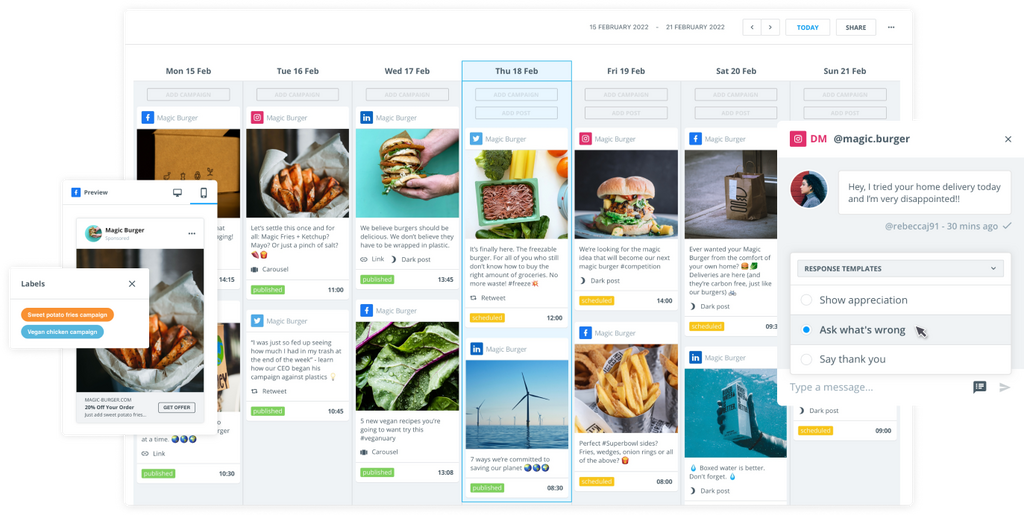
Note: The above advice applies to uploading carousels within the Instagram app. Using a third-party tool like Brandwatch Social Media Management means you can create, schedule, and measure the impact of your carousels alongside content for your other social channels.